Send a ticket, accept one, or join a waitlist in the app
From a ticket in the app you can send it to a friend. From a sold-out ticket type you can join its waitlist. Neither costs anything.
Send a ticket to a friend
- Open the ticket in the Tickets tab and tap Transfer ticket.
- The sheet Send this ticket to opens. Type your friend's email address and tap Transfer. The sheet warns you that your QR code stops working when they accept, and that a transferred ticket can't be refunded unless the event is cancelled.
- Your friend gets an email with a link. They sign in, check the event, and accept or decline. When they accept, the ticket moves to them with a new QR code and leaves your list.
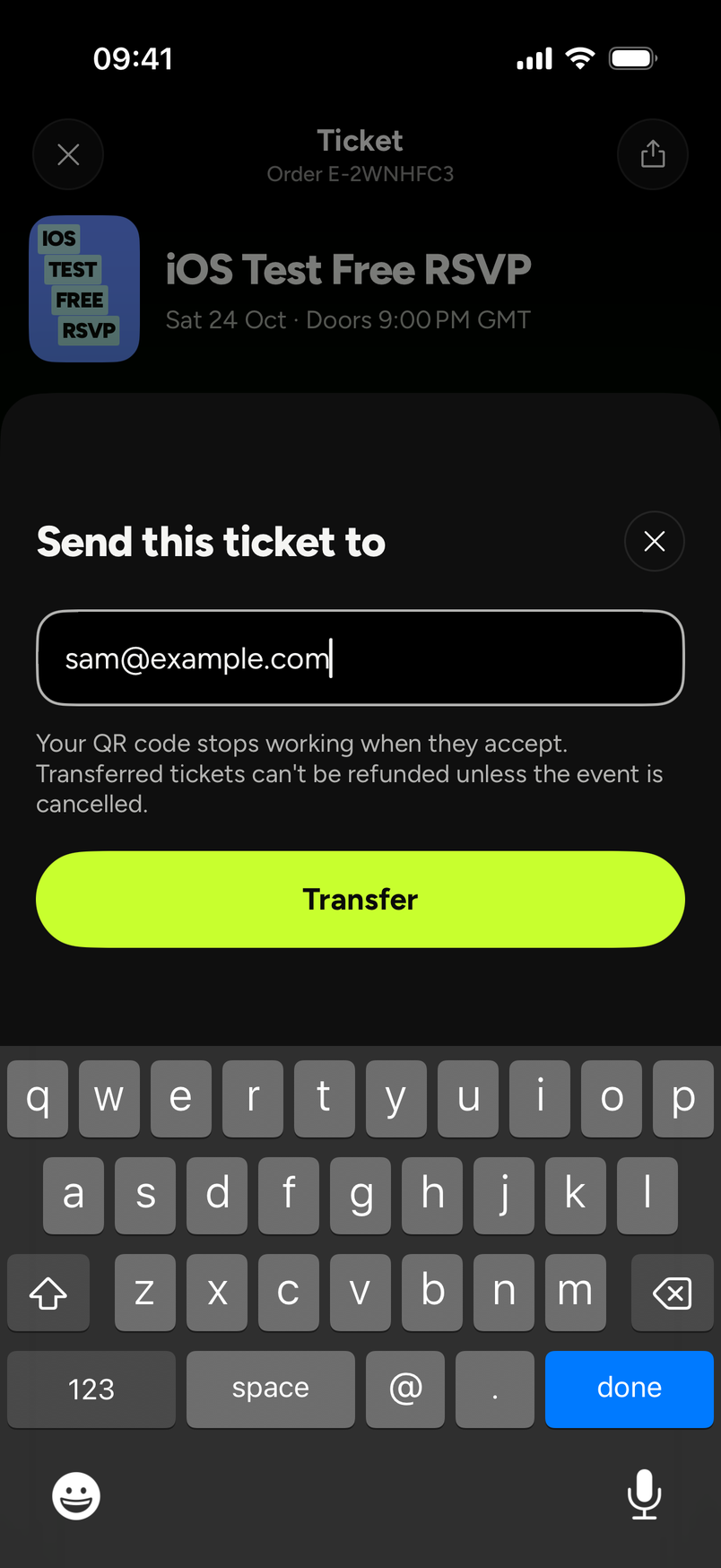
Until they accept, the ticket is still yours. A ticket you've sent shows Transfer pending, and sent tickets are listed in the Tickets tab under Sent. If you use the ticket at the door while the transfer is pending, the transfer cancels itself.
Rules
- Transfers close 1 hour before the event starts.
- A transfer your friend doesn't answer expires after 72 hours, or at that cutoff, whichever is first.
- A ticket can be accepted by a new person up to 3 times.
- A ticket that has been scanned can't be sent.
- You can have 5 transfers waiting at once.
- If your friend declines, you can't send the same ticket to the same address again for 24 hours.
- Some organizers turn transfers off for their event.
Accept a ticket someone sent you
Open the email and tap the link. The link opens the website, not the app; Accept a ticket walks you through it there. Once you accept, the ticket shows in the app's Tickets tab, marked Received from and the sender's name.
Your account needs a confirmed email address to accept.
See your transfers
- Tickets you've sent are in the Tickets tab under Sent. One that hasn't been answered yet shows Transfer pending on the ticket.
- A ticket you received shows Received from and the sender's name. There is no separate list of received tickets.
Join a waitlist
- On the event, a sold-out ticket type shows Join waitlist when the organizer has the waitlist on. The sheet that opens is titled Join the waitlist.
- Choose how many tickets you want. You can ask for 1 to 4.
- If tickets come back, we hold them for you. The organizer sets the hold at 1, 4, 12 or 24 hours.
Your waitlists
The waitlists you've joined are listed under Profile, then Waitlists. You can be on up to 10 waitlists at once.